
Top Alight Motion Presets: XML & QR Code Imports (2026)
Editing videos in Alight Motion can feel exciting at first. But when you start doing manual keyframing again and again, it quickly becomes tiring. Because of this, even simple edits start feeling complicated and slow. So, the whole process can become frustrating when you just want quick and clean results. That is why the Alight Motion presets solve this problem by giving you ready-made editing setups.
These presets include transitions, color grading, motion effects, and text styles that you can apply instantly. So, instead of creating everything manually, you just import a preset and use it. They also help you maintain a consistent and professional look across all your videos with less effort. You will learn what presets are, how to import them, and how to use them on mobile. So, even if you are a beginner, you can easily follow along and improve your editing skills quickly by using Alight Motion presets APK.
Alight Motion Presets Overview
Alight Motion presets are pre-designed editing setups that simplify video creation. They include effects, transitions, and animations that are already configured. So, you don’t need to adjust every detail manually. These presets are often shared through links, QR codes, or XML files. Because of this flexibility, you can easily import and reuse them anytime. Also, they help to beginners and advanced users create high-quality
edits faster. In short, presets turn complex editing into a quick process.
Top 7 Trending Presets to Use in 2026
In 2026, Alight Motion presets are becoming more advanced and stylish. Creators are focusing more on smooth motion and clean effects. You can use these trending presets to upgrade your edits. So, your videos look modern and engaging. Below are the trending types you can use in your edits.
1. Transition Presets
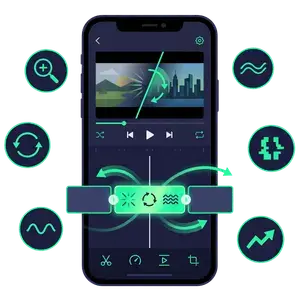
The first and most important type is transition presets. These control how one clip moves into another, so they directly affect the flow of your video. If transitions feel rough, the whole edit looks unprofessional. You can apply smooth zooms, spins, or shakes without manual keyframing. We use these the most because they instantly improve the overall quality.
2. Motion Blur Preset
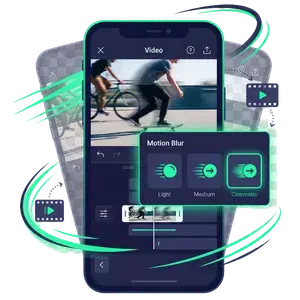
Motion blur presets make your clips look smooth during movement. They add a cinematic flow when scenes change quickly. We often use them in action and travel edits. This preset helps to reduce harsh cuts and makes transitions softer.
3. Lens Flare & Glow Scan
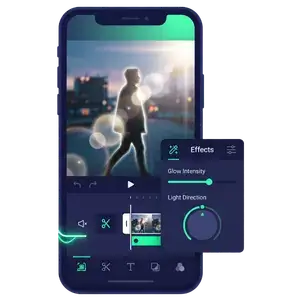
This preset adds bright light effects and glowing highlights. It is perfect for aesthetic and cinematic videos. You can make your visuals look more dramatic and eye-catching. We use it mostly for emotional or stylish edits.
4. Oscillate & Swing Preset
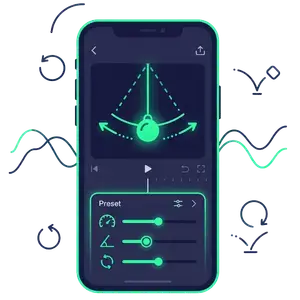
Oscillate presets add back-and-forth movement to clips. It creates a natural swinging motion that feels dynamic. You can use it to make your edits more lively. This preset is popular in reels and short creative videos.
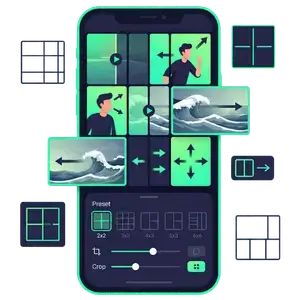
5. Tiles (Crop) Preset
Tiles preset splits your video into multiple sections. Each section moves or animates differently for a creative layout. We use it to make edits look modern and unique. It works well for gaming and montage videos.
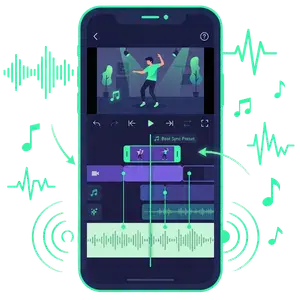
6. Beat Sync Presets
Beat sync presets are created to match visuals with music beats. You can apply them to make transitions follow the rhythm automatically. So, your video feels smooth and lively. We often use these in reels and music edits for better impact. You get a synced edit without spending time on manual adjustments.
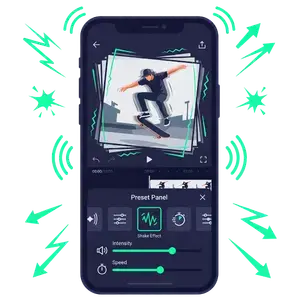
7. Alight Motion Shake Effect
Alight Motion shake effect is a popular motion preset used to add energy and movement to videos. It creates a shaking or vibrating effect that makes clips feel more dynamic and engaging. Some links also provide direct alight motion shake effect download options. So, you just tap and save the file to your device. So, your edits look more professional and trendy.
How to Import Alight Motion Presets (Step-by-Step)
Importing Alight Motion effects is simple, but you need to follow the correct method. Different formats require different steps. So, choose the method that matches your preset file.
Method No 1: Using QR Codes
This is the fastest way to import presets, especially for beginners. You don’t need to download any files, so the process stays simple. It works instantly if the code is clear.
Method No 2: Importing XML Files
You can easily download alight motion preset xml file download from our site and import it in a few steps. We make sure the files are clean and ready to use, so you don’t face errors. This method works best if you want more control and high-quality presets.
Method No 3: HTTP Links
We also provide alight motion preset link on our site for quick access. This method is fast and does not require manual file handling. It is perfect for instant use.
How To Apply Alight Motion Preset On Android Devices?
Applying presets in Alight Motion is easy when you follow the correct steps. You just need the XML file and the app installed on your mobile. After that, you can copy and apply effects in any project.
Download the XML File
Click the download button to get the alight motion xml file download. The file will be saved in your phone’s download folder. Make sure the download is complete before moving forward.
Locate and Share the File
Open File Manager and find the downloaded XML file. Long-press it and tap on “Share.” This will allow you
to send it to Alight Motion.
Open in Alight Motion
From the share options, select “Alight Motion.” The app will open and load the preset project. If you don’t see it, scroll through the app list.
Select Effects Layer
Open the preset project and choose the layer with effects. This layer contains all preset settings. Select it
carefully before copying.
Copy Effects
Go to the Effects tab in that layer. Tap the three dots menu and select “Copy Effects.” This saves all preset settings.
Paste in Your Project
Open your own project and select a layer. Go back to Effects and tap the three dots. Choose “Paste Effects” to apply the preset.
Benefits of Using Alight Motion Presets
Alight Motion preset downloads make editing faster and easier. You don’t need to build effects from scratch, so you save a lot of time. We use presets because they help create professional results with less effort.
Troubleshooting Common Alight Motion Presets Issues & Fixes
Sometimes presets don’t work properly due to small mistakes. These issues are common and easy to fix. We just need to follow the right steps to solve them quickly.
XML File Not Importing
This usually happens when the file is broken or incomplete. Check if the XML file is fully downloaded. Then try importing it again from File Manager.
Preset Looks Different After Import
This can happen due to version differences in the app. Make sure your Alight Motion APK is updated. So,
always use the latest version for best results.
Effects Not Showing
Sometimes effects don’t appear because the wrong layer is selected. Make sure you copy and paste effects
from the correct layer. So, always double-check before applying.
App Lag or Crash
Alight Motion may lag if your project is too heavy. Clear caches or reduce the number of layers in your
project. This helps the app run smoothly again.
Frequently Asked Questions
Final Verdict
To conclude, Alight Motion presets are a simple way to improve your editing without extra effort. You can create smooth, professional, and engaging videos in less time. So, instead of doing everything manually, you just apply presets and get better results instantly. We recommend you keep trying new presets and explore different styles to improve your edits. Also, don’t forget to check back for fresh updates and weekly preset collections.