How to Beat-Sync Audio, Reverse Video, Tune Motion Blur & Replace XML Media
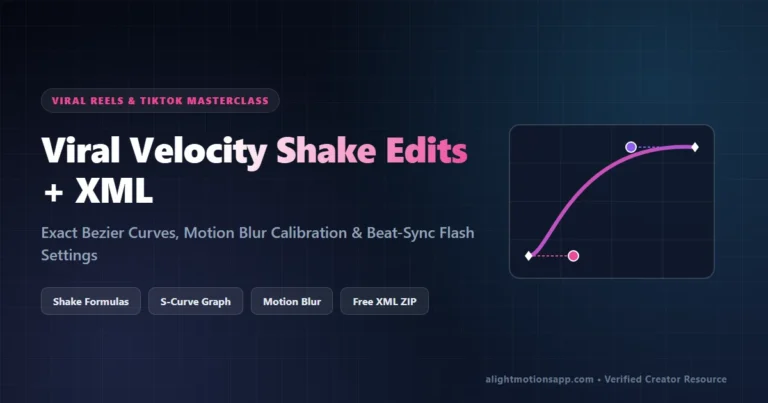
Master frame-accurate red audio markers, clean clip reversal workarounds, realistic Motion Blur calibration, and swapping placeholder media in XML presets.
- Pinch outward on the timeline and drop red Audio Bookmarks on waveform spikes for millisecond beat-sync precision.
- Keep Motion Blur (`Tune: 1.00 – 1.40`) toggled OFF while editing to prevent preview stutter, then enable right before export.
- Always swap placeholder clips via Layer > Color & Fill > Gallery Icon so XML animations and graphs stay intact.
How to Mark Beats Accurately & Sync Transitions to Audio
Eyeballing transitions off memory makes edits feel slightly early or late against the beat. Alight Motion’s precision frame scrubbing and waveform bookmarks lock visual impacts onto the exact millisecond drum transient.
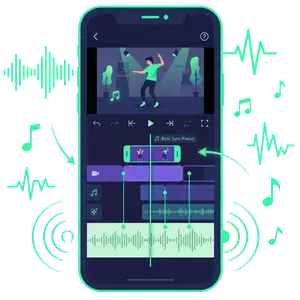
Step-by-Step Audio Beat Marking
- Tap (+) > Audio, pick your track, and stretch the timeline vertically with two fingers (pinch outward horizontally!) to inspect individual millisecond frames.
- Play the song live and tap the small Bookmark Tag Icon on the right edge of the timestamp readout (`00:02:14`) on every snare hit or bass drop.
- Stop playback, scrub step-by-step onto each red vertical bookmark line, and notice the magnetic timeline snapping clips directly onto those markers cleanly!
How to Reverse a Video Clip Cleanly in Alight Motion
Looking for a Reverse toggle inside Alight Motion’s Speed tab? Unlike basic phone trimmers, Alight Motion does not have a single “Reverse Clip” button directly inside Speed on every Android build because forward B-frame video codecs decode poorly backward in real time.
To reverse clips cleanly without timeline green glitches or audio lag:
- Option 1 (Time-Remap / Keyframe Mirror): For short loops inside Alight Motion, duplicate your clip layer, apply Effects > Speed & Time (if visible on your build) or animate playback cleanly, though pre-reversing heavy 60FPS H.264 footage avoids memory spikes.
- Option 2 (Lossless Pre-Reverse Before Importing): If your 4K clip contains heavy motion, reverse just that 3-second action segment beforehand using your device’s built-in Gallery Editor or any fast local reverser at full 1080p/4K bitrate, then drop the smooth forward-encoded reversed MP4 into Alight Motion to add shakes, motion blur, and Bezier zooms with zero decoder lag!
Calibrating Motion Blur for Velvety Whip Pans
Fast transitions look choppy unless moving pixels smear naturally across frames. Add Effects > Add Effect > Blur > Motion Blur:
- Tune Slider (`0.80` to `1.50`): Default
1.00matches a natural 180° cinema shutter angle. Bump up to1.50–1.80for dramatic anime velocity zooms; drop to0.60for legible moving lyrics text. - Toggle Off While Editing: Keep Motion Blur’s eyeball OFF while placing beats and keyframes so your phone preview runs smoothly, then turn the eyeball ON right before tapping Export.
- Match Scale/Position Angles: Make sure Use Position, Use Scale, and Use Angle checkboxes are toggled ON inside Motion Blur settings so rotational shakes and whip zooms blur proportionally.
How to Replace Images & Clips Inside Downloaded XML Presets
Downloaded an amazing XML template only to find blank gray boxes labeled Layer 1 or Clip A? Never delete those layers—deleting them erases all keyframe animations attached to them! Instead, swap media directly while keeping every curve intact:
- Tap the gray placeholder rectangle or blank layer in the timeline.
- Open Color & Fill (NOT Effects!) on the bottom panel.
- Tap the Media / Gallery Picture Icon inside Color & Fill > pick your own photo or video clip > tap the (+) icon at the top right of the picker.
- Your clip drops directly inside the animated container, inheriting 100% of the preset’s shake keyframes, Cubic Bezier graphs, and Tiles reflections!
100% VirusTotal Verified • XML Unlocked • Fast Google Drive CDN (Opens New Tab)
Frequently Asked Questions
Why is there no Reverse button in Alight Motion Speed settings?
Android hardware H.264/H.265 decoders store compressed P-frames and B-frames forward-only, causing heavy preview crashes when decoded backward in real time with stacked VFX. Pre-reversing heavy clips first keeps Alight Motion timelines silky smooth.
How do I stop my text or video from getting too blurry with Motion Blur enabled?
Open Motion Blur settings and dial down the ‘Tune’ slider from 1.00 to 0.50–0.70, or uncheck ‘Scale’ inside Motion Blur so only lateral slides smear subtly.
How do I swap photos in an imported XML preset without losing the shake effects?
Select the placeholder shape/layer > tap Color & Fill > tap the Media Image icon > select your new photo or video. Never delete the placeholder layer.