EXPORT & CODEC DIAGNOSTICS • 2026
How to Fix Alight Motion Export Problem, Codec Errors & 99% Freeze (2026 Guide)
Dial in exact 1080p60 and 4K export bitrates for Reels/TikTok, solve 0-byte codec errors, and prevent export freezes forever.
Key Takeaways
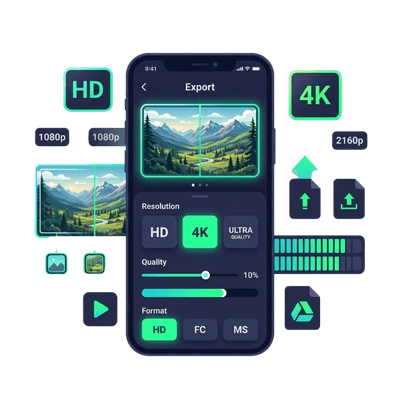
- Always switch from H.265 (HEVC) to H.264 to eliminate 0-byte corrupted exports and washed-out colors.
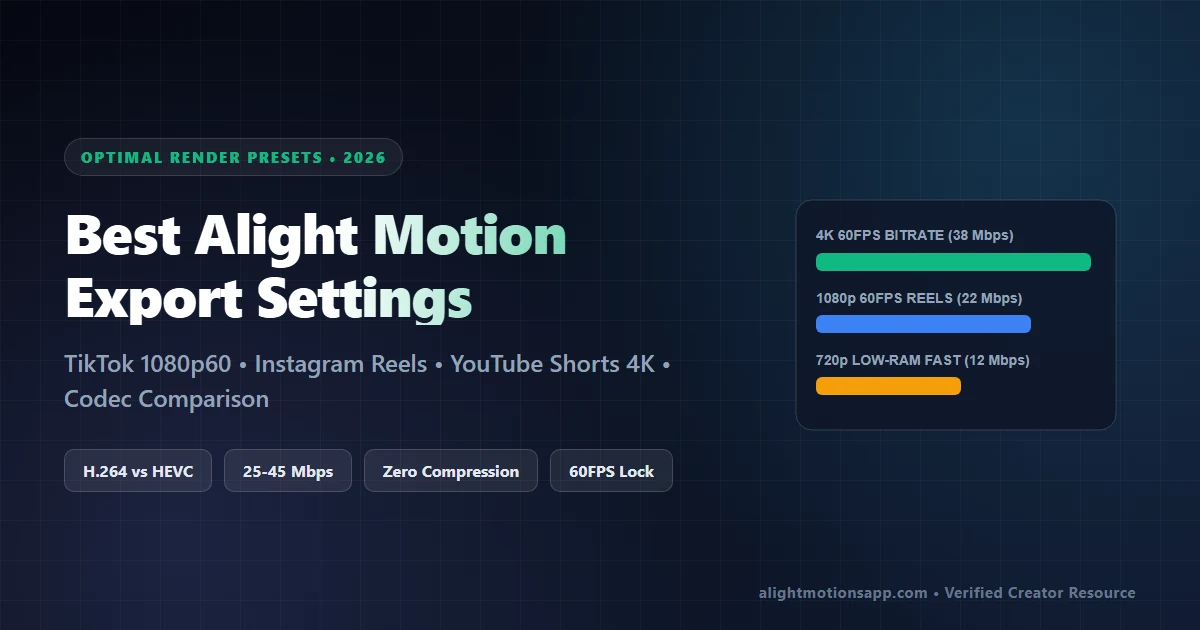
- Target 1080p 60FPS at 22 Mbps for TikTok/Instagram Reels and 4K 60FPS at 38 Mbps for YouTube Shorts.
- Keep 5GB+ free storage and turn off OS battery restrictions so multi-minute renders never stop at 99%.
Why Do Alight Motion Exports Freeze at 99% or Output 0 Bytes?
Alight Motion export errors happen when your device’s hardware video encoder runs out of memory encoding HEVC (H.265) / 4K streams, when you lack 3x the projected output file size in free storage, or when Video Frame Rate mismatch stalls multiplexer packaging at 99%.
Best Alight Motion Export Settings (2026 Social Platform Presets)
| Platform Target | Resolution | Framerate | Codec & Bitrate | Why It Prevents Compression |
|---|---|---|---|---|
| Instagram Reels & TikTok | 1080p HD | 60 FPS | H.264 • 20–24 Mbps | TikTok & IG re-compress 4K aggressively; crisp 1080p60 avoids muddy banding. |
| YouTube Shorts & AMVs | 4K (2160p) | 60 FPS | H.264 • 38 Mbps | Triggers YouTube’s VP9 high-bitrate encoder for ultra-sharp motion lines. |
| Budget 2GB/3GB Phones | 720p HD | 30 FPS | H.264 • 12 Mbps | Cuts GPU encode heat by 60% and eliminates 99% export stalls. |
Step-by-Step Fixes for Codec Errors, Black Screens & Export Lag
- Switch Codec From HEVC/H.265 to Standard H.264: Tap the Export Gear > Video Settings > turn Use H.265 (HEVC) OFF. Many MediaTek and older Snapdragon chips drop frames at the muxing stage under HEVC, resulting in “0 Bytes” files.
- Run “Re-Evaluate Codec Capabilities”: Inside Alight Motion Home Menu > tap Re-Evaluate Codec Capabilities so the exporter aligns with your exact Android 14/15 media hardware profile.
- Pre-Render Heavy Segments: If one 4-second beat drop contains 12 effects (Displacement + Directional Blur + Glow + RGB Split), export that 4-second clip alone first, re-import the clean MP4, and stitch your full project smoothly.
- Keep At Least 5 GB Free Internal Storage: Temporary uncompressed YUV frames sit in disk cache until the `.mp4` finalizes at 100%. Running below 2 GB free causes silent mux failure right at 99%.
- Disable Background Battery Optimization: Long 4K exports on Xiaomi (MIUI/HyperOS), Realme, and Vivo devices often fail if OS power savers kill background encoding—set Alight Motion Battery to Unrestricted.
Need Alight Motion Pro v5.0.281 (No Watermark)?
100% VirusTotal Verified • XML Unlocked • Fast Google Drive CDN (Opens New Tab)
100% VirusTotal Verified • XML Unlocked • Fast Google Drive CDN (Opens New Tab)
Frequently Asked Questions
What are the best Alight Motion export settings for Instagram Reels without losing quality?
Export at 1080p resolution, 60 FPS, H.264 codec, and 22 Mbps quality bitrate. Uploading native 1080p60 prevents Instagram’s servers from crushing 4K files with blurry artifacting.
How do I fix Alight Motion stuck at 99% preparing to save?
Do not lock your phone screen during export. Free at least 5GB of storage, lower your custom bitrate slider one notch from ‘Max’ to ~24 Mbps, and disable H.265/HEVC.
What causes the ‘Unsupported Video Codec / Failed to Export’ error?
Using high-framerate 120FPS iPhone ProRes/HDR source clips directly inside Android Alight Motion often breaks decoding. Transcode raw clips to standard 1080p60 H.264 first or run Re-Evaluate Codec Capabilities.