How to Make Smooth Transitions in Alight Motion (Top 7 Viral Transitions + Free XML)
Master buttery-smooth Zoom, Spin, Whip Pan, 3D Cube & RGB Glitch transitions in Alight Motion with exact Cubic Bezier curves, Tiles Mirror fixes & free XML presets.

- Always apply Tiles with Mirror ON before scaling or rotating to eliminate ugly black edge borders.
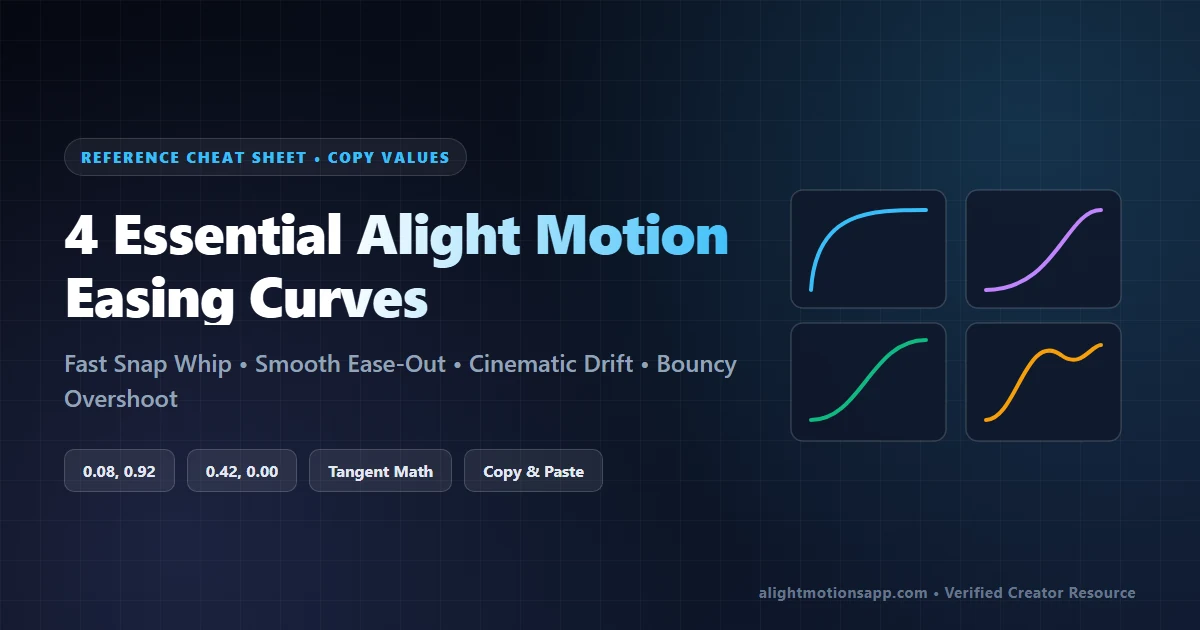
- Pair Sharp Ease-In (Clip 1) with Sharp Ease-Out (Clip 2) in the Graph Editor for seamless acceleration across the cut point.
- Download our free Transitions XML Pack to import all 7 pre-built transition recipes in 1 click.
The Fundamentals of Professional Alight Motion Transitions
1.00–1.20 shutter angle seals the seamless flow.Default video editors snap abruptly between cuts or rely on cheesy pre-packaged crossfades. In Alight Motion, you have full manual control over spatial transforms, scale momentum, rotational inertia, and 3D Z-depth. Below is the master blueprint for the top 7 viral transitions used across anime AMVs, TikTok gaming edits, and cinematic travel vlogs.
Top 7 Viral Alight Motion Transitions (Step-by-Step Settings)
1. Seamless Zoom In & Zoom Out Transition
The most versatile transition for beat drops, dialogue punches, and montage pacing:
- Setup: Place two video clips next to each other on the timeline. Trim clip 1 to end exactly where clip 2 begins.
- Clip 1 (Outgoing): Go to Move & Transform > Scale (Icon 3). Add Keyframe 1 at 15 frames before the end (Scale
1.000x). Add Keyframe 2 at the very last frame (Scale2.200x). Open the Graph Editor and drag handles to Sharp Ease-In (steep curve bending downward). - Clip 2 (Incoming): On the first frame of Clip 2, set Scale to
0.450x. 15 frames later, set Scale to1.000x. Set Graph curve to Sharp Ease-Out (curve flattening at the top right). - Crucial Fix: Add Effects > Distortion/Warp > Tiles with Mirror = ON on both clips! This mirrors edge pixels so zooming out never shows empty black bars.
2. High-Speed Spin / Rotation Transition
Gives fast-paced edits an energetic rotational whip:
- Clip 1: Under Move & Transform > Rotate (Icon 2), keyframe from
0°to+90°(or-90°for counter-clockwise). Apply an aggressive Ease-In curve. - Clip 2: Keyframe from
-90°(matching the spin direction) to0°over 12 frames with an Ease-Out curve. - Polish: Add Effects > Blur > Motion Blur (Tune tune slider to
1.20) on both layers.
3. Smooth Horizontal Whip Pan / Slide Transition
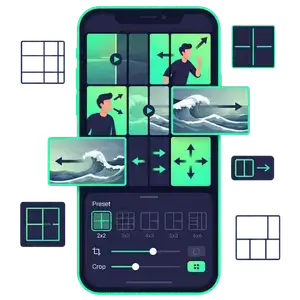
Simulates a whip pan camera movement between scenes:
- Clip 1: Move & Transform (Position X/Y) > Keyframe X from center
540pxto-540px(sliding off-screen left). Ease-In curve. - Clip 2: Keyframe X from
1620px(entering from right) back to center540px. Ease-Out curve. - Motion Blur: Set to
1.50so the center of the transition blurs into a realistic speed streak.
4. 3D Cube / Flip Transition
Creates a dimensional rotating cube effect using Alight Motion’s 3D engine:
- Add Effects > 3D > Cube or Flip Layer to both clips.
- Keyframe Angle from
0°to-90°on Clip 1, and+90°to0°on Clip 2 with mirroring activated.
5. Glitch RGB Split Transition
Perfect for cyberpunk, phonk, or horror edits:
- Add Effects > Distortion/Warp > Chroma Key / RGB Split on an Adjustment Layer spanning 8 frames across the cut.
- Keyframe Offset from
0> spike to24pxon the cut point > settle to0.
6. Smooth Swirl / Vortex Warp Transition
Twists footage inward toward the center before unwrapping into the next scene:
- Add Effects > Distortion > Swirl. Keyframe Radius to
80%and Strength from0.00to+2.50at the cut. - On Clip 2, keyframe Strength from
-2.50back to0.00.
7. Flash & Glow Exposure Transition
Accents hard musical beats with a clean cinematic camera flash:
- Add Color & Light > Exposure / Gamma. On the first frame of Clip 2, set Exposure to
+1.40and keyframe down to0.00over 8 frames with a steep ease-out graph.
Transitions Quick-Reference Cheat Sheet
| Transition Style | Core Effects Used | Graph Formula | Best Music Pacing |
|---|---|---|---|
| Smooth Zoom | Tiles (Mirror ON) + Scale Transform | Sharp Ease-In / Sharp Ease-Out | Trap kicks, Anime AMV beat drops |
| Whip Pan Slide | Position Transform + Motion Blur | Linear start > Exponential Ease-Out | Vlogs, Fast B-roll sequences |
| High-Speed Spin | Rotate Transform + Motion Blur 1.2 | 90° match Ease-In / Ease-Out | Viral TikTok dances & transitions |
| RGB Glitch | Chroma Split + Directional Blur | Spike keyframe (0 > 24 > 0) | Phonk beats, Gaming montages |
| Flash Glow | Exposure (+1.40) + Highlights | Instant spike > Smooth Ease-Out | Hard 808 bass, Scene switches |
Download Free Smooth Transitions XML Presets Pack (2026)
Save hours of manual keyframing by downloading our pre-built XML pack. It contains all 7 transition recipes ready to copy and paste straight onto your footage:
Frequently Asked Questions
Why do my Alight Motion transitions look choppy and laggy?
Choppy transitions happen when you skip the Graph Editor. If keyframes run on default ‘Linear’ timing, motion starts and stops abruptly. Always apply Cubic Bezier Ease-In and Ease-Out curves so speed accelerates into the cut and decelerates smoothly out.
Why do black borders appear when I do a Zoom or Spin transition in Alight Motion?
When layers scale down or rotate, empty canvas space shows around the boundaries. To fix this, always add the ‘Tiles’ effect at the very top of your effect stack and toggle ‘Mirror’ ON.
What is the best graph curve setting for smooth transitions?
For the outgoing clip, drag the easing curve handle downward to create a steep Ease-In curve (speed accelerates right before the cut). For the incoming clip, drag the curve handle upward to create an Ease-Out curve (motion starts fast and settles smoothly).
Can I copy and paste transitions between projects in Alight Motion?
Yes! Tap the layer with the transition, open Effects, tap the three dots (bottom-left) > ‘Copy Effects’, then select your new clip and tap ‘Paste Effects’. You can also save the entire clip as an XML preset.
Does Motion Blur make transitions look smoother in Alight Motion?
Yes. Enabling Motion Blur with a tune value of 1.00–1.20 blends consecutive frames during rapid rotation, zoom, or panning, creating the realistic optical drag seen in desktop motion graphics.
Related Alight Motion Guides & Resources