Alight Motion Keyframe Animation & Cubic Bezier Easing Curves (Pro Guide)
Learn exactly how to shape smooth S-curves, overshoot snaps, Copy/Paste curve tricks, and fix grayed-out keyframe bugs.
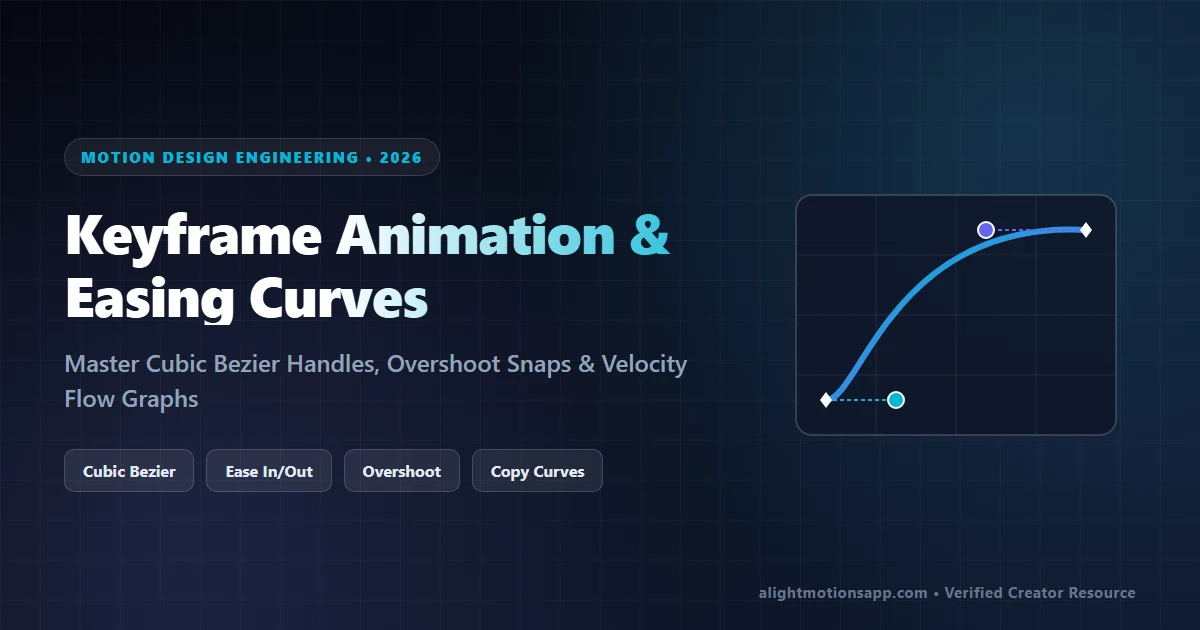
- Always sit the timeline playhead strictly between two keyframes to unlock the Cubic Bezier Graph Editor.
- Pull bottom handle right and top handle left into a tight S-Curve for snappy TikTok whip-pan transitions.
- Use Three Dots > Copy Curve / Paste Mirror Curve inside the graph panel to sync incoming and outgoing cuts identically.
What Is Keyframe Animation & Why Linear Motion Looks Robotic
Beginner edits look stiff because linear keyframes start and stop instantly at constant speed. Real-world motion never switches from 0 to 100 mph in zero milliseconds—objects accelerate smoothly, whip past a midpoint peak, and settle gently into place. Controlling Alight Motion’s Graph Editor turns amateur slide transitions into fluid After Effects-style motion design.
Exact Alight Motion Bezier Graph Recipes (Copy These Shapes!)
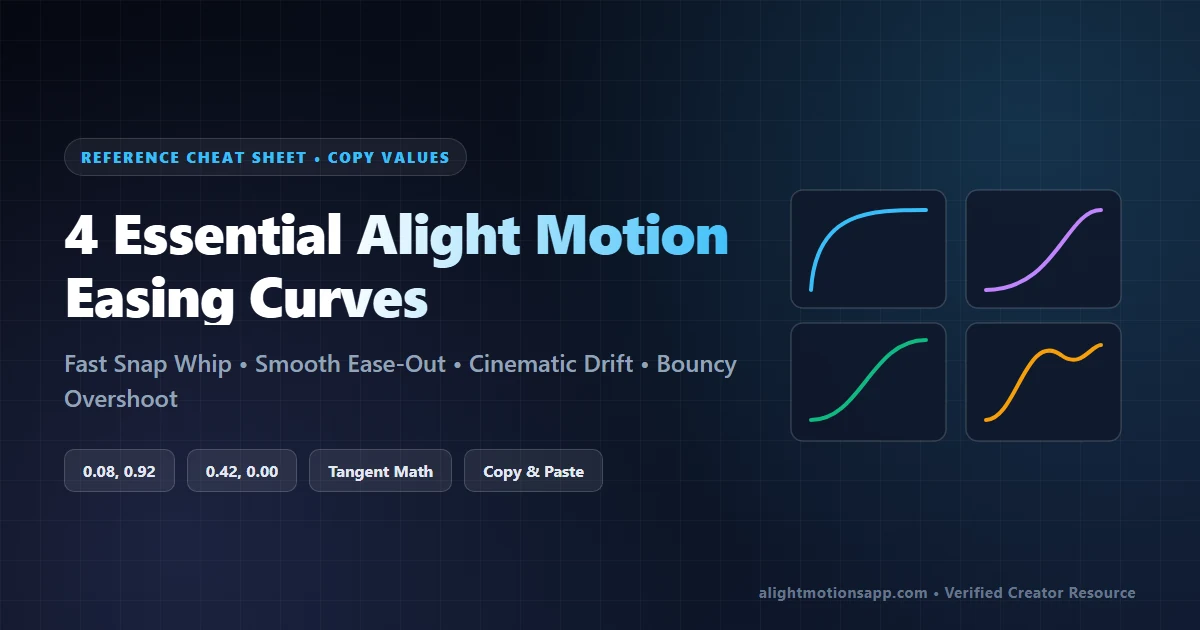
Tap between any two keyframes on your timeline, select the Graph Icon (curve symbol directly beneath the diamond button), and pull the white/blue handle circles into these exact visual postures:
| Curve Style | Visual Handle Setup | Cubic Bezier Feel | Ideal Editing Scenario |
|---|---|---|---|
| 1. Fast-Out Snap Whip | Bottom handle right (`x=0.10`); Top handle tight left (`x=0.20, y=1.0`) | Explosive launch that glides cleanly into rest | Zoom-out reveal after beat drop, text pop-ins, slide arrivals |
| 2. Anticipation Fast-In | Bottom handle pulled far right (`x=0.80, y=0.0`); Top handle top-right (`x=0.92`) | Slow creeping pull-back accelerating sharply at exit | Incoming transition clip leading right up to a cut point |
| 3. Pro Whip S-Curve | Both handles pulled inward cleanly toward center (`0.85, 0` / `0.15, 1`) | Dramatic slow-fast-slow surge peaking right on cut | 3D camera pans, slide swaps, velocity speed ramps |
| 4. Elastic Overshoot Curve | Drag top handle slightly ABOVE the top ceiling border (toggle Overshoot preset) | Passes target value and bounces smoothly back | Cute bounce text, lyric stamps, playful shape icons |
How to Copy & Paste Easing Curves Across Every Parameter
Do not redraw the same Bezier curve 12 times across Position, Scale, Rotation, and Blur! Inside the Graph Editor, tap the Three Dots Icon (Bottom Left of Graph) > Copy Curve. Jump to any other keyframed interval across any layer, open its Graph Editor, tap Three Dots > Paste Curve. You can even tap Paste Curve & Mirror to automatically flip an Ease-In transition into a matching Ease-Out exit!
Troubleshooting: “Alight Motion Keyframes Not Working / Stuck”
One of the most frequent issues reported in Google search is keyframes refusing to save changes or greying out. Fix all three common traps below:
- Scrubbing Without Tapping the Diamond First: Unlike some desktop suites that auto-keyframe every move automatically, ensure you add at least two keyframes on the same property track before adjusting values—dragging a layer with only one keyframe shifts the entire global position rather than animating motion!
- Editing Between Locked XML Groups: When importing complex XML templates, keyframes often live inside nested Groups. Tap the Group > Edit Group at the bottom panel to expose inner layer keyframes cleanly.
- Graph Icon Remains Grayed Out: The Graph Editor requires your timeline playhead to sit strictly between two active keyframes on the selected parameter. If your playhead sits outside the keyframe range or sits on top of a single lone diamond, the curve button remains disabled.
100% VirusTotal Verified • XML Unlocked • Fast Google Drive CDN (Opens New Tab)
Frequently Asked Questions
How do I get smooth After Effects-style motion curves in Alight Motion?
Place two keyframes, put the playhead strictly between them, open the Graph Editor below the diamond icon, and choose Preset 3 (S-Curve) or drag both handles inward horizontally toward the center vertical line.
Why can’t I drag the Bezier graph dot above the top edge?
Standard cubic bezier presets clamp between 0 and 1. To overshoot above 100%, switch from the single Curve tab to the Overshoot / Spring presets inside the Graph Editor preset list.
What keyframes work best with Velocity Shake edits?
Pair Oscillate Magnitude keyframes decaying from high to zero with a Fast-Out Ease curve, and combine Scale keyframes (1.25x down to 1.00x) with Motion Blur enabled—see our Velocity Shake Guide for exact numbers.